Linux Commands

I am a DevOps engineer from India.
File Management Commands
Directory Navigation:
pwd - Get the full path of the current working directory
pwd
cd -To change the directory from the current directory
cd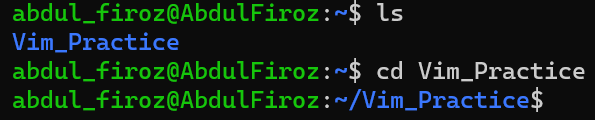
cd ~ -Navigate to the current users home directory
cd ~
cd . . -Navigate one step backward from the current directory
cd ..
List files:
ls -l -List the files and directories in the current directory in Long Format
ls -l
ls -ld <Directory Name> - List contents of the specific directory
ls -ld
ls -a - List all files including hidden files
ls -a
ls -F -Shows the "*" symbol at the end of the file which means its executable
ls -F
ls -lt -List the files with the most recently modified files showing at the top
ld -lt
ls -lh -List the file size in a human-readable format
ls -lh
tree -Generates a tree representation of the file system
tree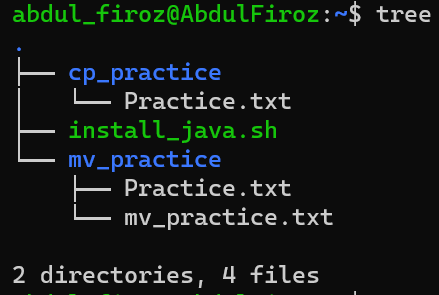
File/directory create, copy and remove:
mkdir - It is used to create a directory
mkdir new_directory
touch -It is used to create files in directories
touch new_file
cat -It is used to concatenate files and it is used to view file data
cat new_file
cp -r <original_directory/file> <Copied_directory/file> -It is used to copy files/directories recursively
cp -r new_directory copied_directory
rm -r <Directory/File name> -It is used to remove files/directories recursively
rm -r copied_directory
mv <original_directory/filename> <renamed_directory/filename> -It is used to rename the files
mv new_directory renamed_directory
Modifying File Permissions:
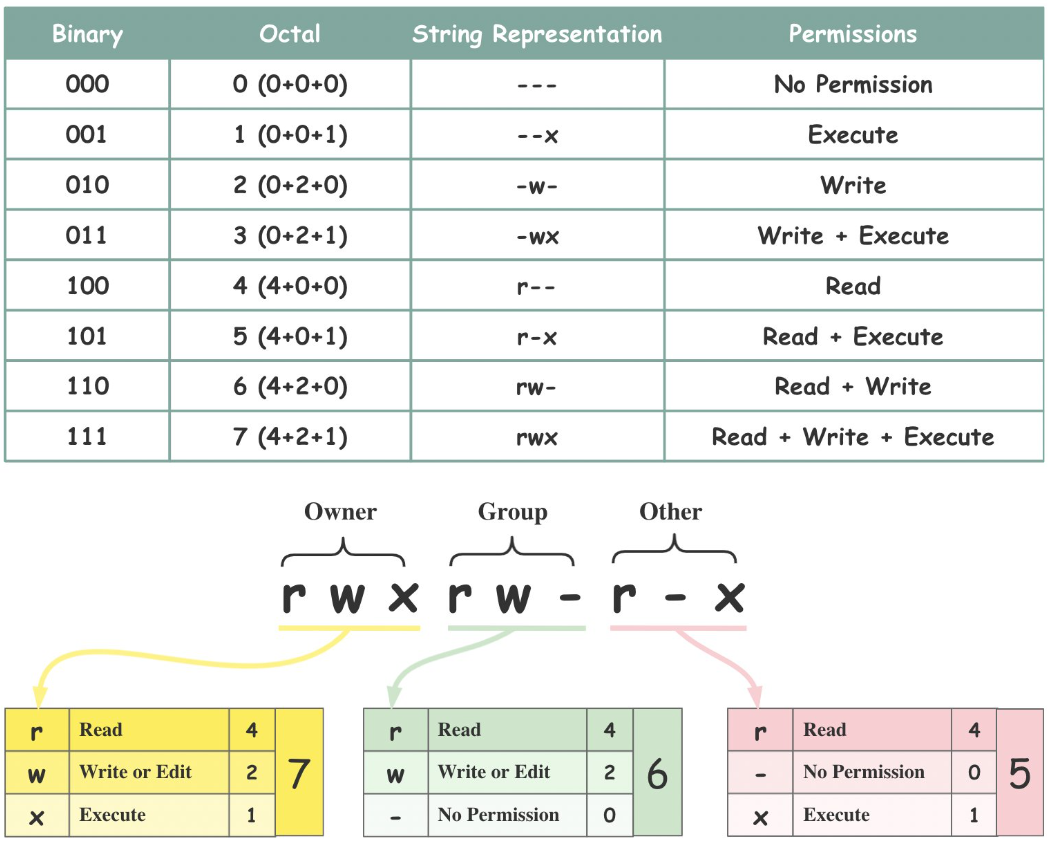
Sign | Function |
+ | To add Permissions for the selected file |
- | To remove Permissions for the selected file |
chmod o-x <File_name> - To remove other user permission
chmod o-x chmod_file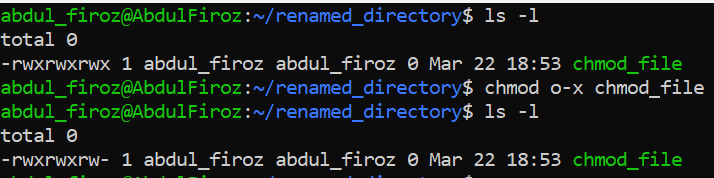
chmod o+x <File_name> -To add other user permission
chmod o+x chmod_file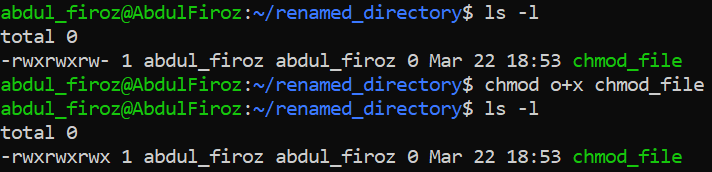
chmod o=_wx <File_name> -To modify Other user permissions
chmod o=wx chmod_file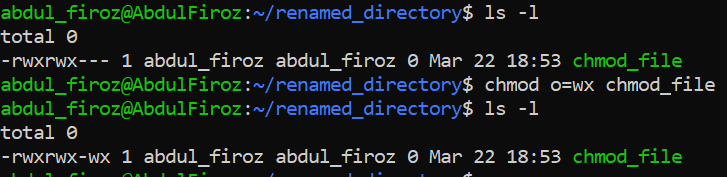
chmod 777 <File_name> -To modify owner, group, and other permissions using octet numbers
chmod 777 chmod_file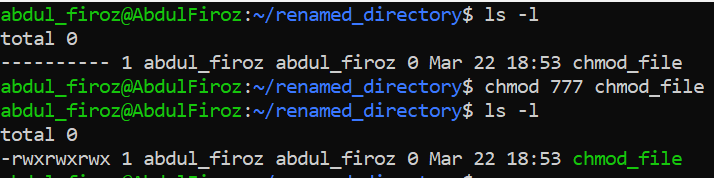
chmod 456 <File_name>
chmod 456 chmod_file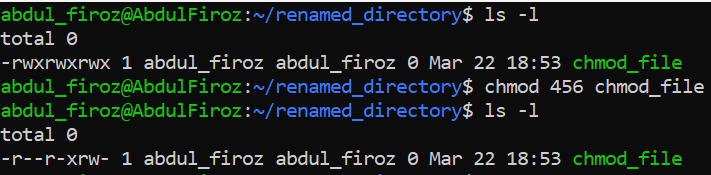
Managing User:
sudo adduser <username> -To create a new user
sudo adduser dummy_user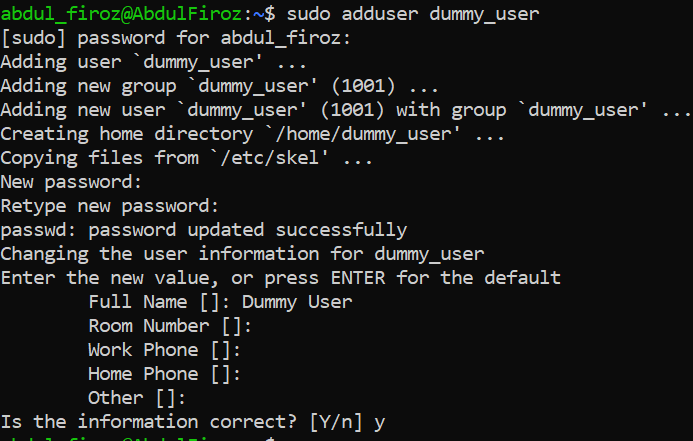
sudo passwd <username> -To change the password for the user
sudo passwd dummy_user
su - <username> -To switch user
su - dummy_user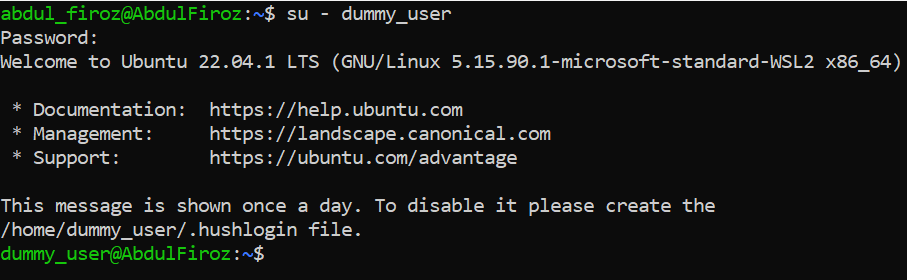
sudo addgroup <groupname> -To create a new group
sudo addgroup linuxsudo adduser -g <groupname> <username> - To add user to a group
sudo adduser -g linux dummy_usersudo adduser -G <groupname_1> <groupname_2> <username> - To add user to multiple groups
sudo adduser -G linux linux_2 dummy_usersudo adduser -aG <newgroup> <username> - To append new group to the existing groups
sudo adduser -aG linux_3 dummy_usersudo adduser -G <groupname> <username> - To add user to group while creating the group
sudo adduser -G Git dummy_user
Change the Owner of the file:
chown <username>: <groupname> <filename> - To change ownership of the file
chown <username> <filename> -To change only user
chgrp <groupname> <filename> -To change only group of file
Package Manager: apt - Advanced Package Tool
apt search <packagename> - To search for the given package
apt install <packagename> -To install a package
apt remove <packagename> - To remove uninstalled packages
Editing Files in the CLI:
vim <filename> - To edit a file
Press "i" - After entering in the Vim editor you will be in command mode to insert/modify anything press key "i"
Press "esc" -To switch back to command mode
press "dd" -To delete a particular line
Press "d10" -To delete the following 10 lines
Press "A" -To jump to the end of the line and change to insert mode
Press "o" -To jump to the start of the line
Press "11G" -Go to the 11 line
Press "/" -To search for a pattern
press "n" -To jump to the next match
press "N" -To jump to the previous match
:wq -To write file to disk and quit Vim
:q! -To Quit Vim without saving the changes
Pipe Command: |
Pipes the output of the previous command as an input to the following command
grep: Global search for regular expressions and print out
history | grep sudo -Basically looks for any command that history provides as an output that has sudo word init
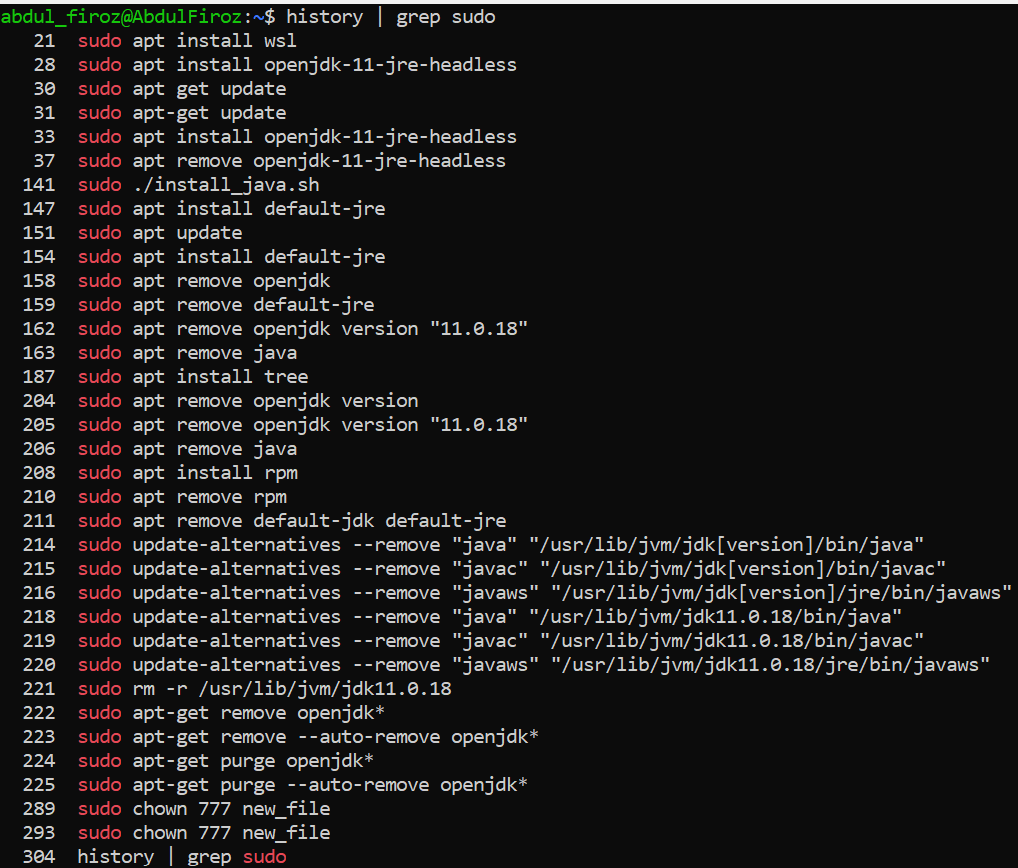
history | grep sudo
Redirection: >
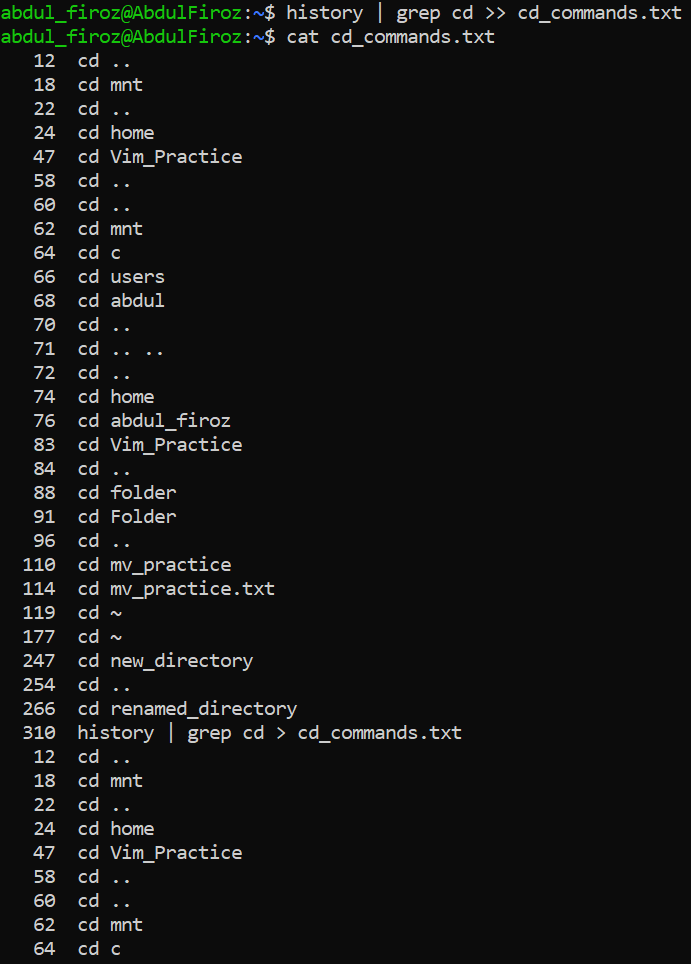
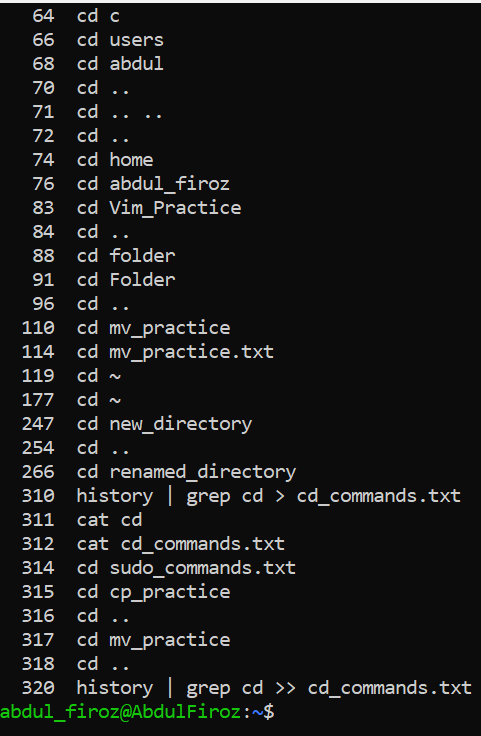
history | grep cd > cd_commands.txt -It takes the output from the previous command and stores it in a file that you define
history | grep cd > cd_commands.txt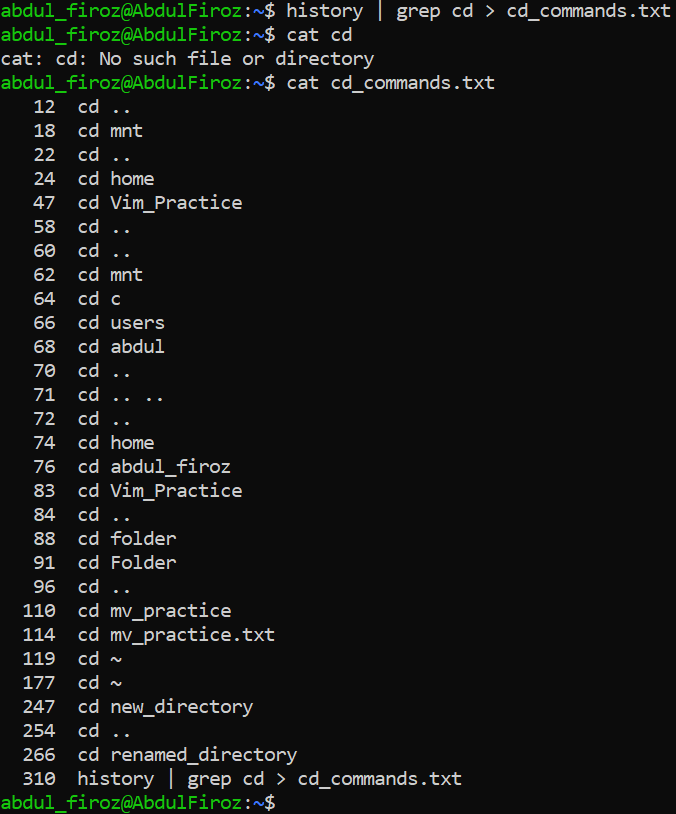
history | grep cd >> cd_commands.txt -It appends text to the end of the file
history | grep cd >> cd_commands.txt